Dans portierVision le terme Gestion des dépôts désigne l'organisation et la gestion des dépôts de clés ou points de distribution au sein du logiciel. Un dépôt est un emplacement défini (par ex. armoire à clés, point de distribution central, accueil, loge) où des clés spécifiques sont stockées et gérées.
Pour créer et gérer des dépôts, l'utilisateur a besoin au minimum du niveau d'autorisation « Employé ».
Only users with this or a higher permission level (e.g. Administrator, Supervisor) have access to the depot management and can make the corresponding changes.
Assigning users to depots:
Only users with the role Administrator or Supervisor can assign other users to a depot.
To use depot management in portier®VISION, this function must first be activated in the Basic Settings.
You can find the corresponding option in the "Basic Settings" section within the settings.
After activating depot management, you can create as many depots as needed.
Each depot represents an independent key distribution point, for example a reception, a key cabinet, or a gatehouse.
In the settings of portier®VISION, you will find the option "Activate Cross-Depot Returns".
When you activate this function, users are allowed to return keys or copies at a different depot than the one where they were originally issued.
This option is particularly useful when your organization has multiple depots (e.g. different locations or branches) and a flexible return process is desired.
Another helpful function is hiding unauthorized copies.
With this setting, you ensure that users can only see and manage the keys and copies for which they are authorized.
This is particularly useful when you have multiple branches or locations that should each exclusively manage their own key inventories.
Tip:
To access the settings, click on the gear icon in the upper right of the main screen.
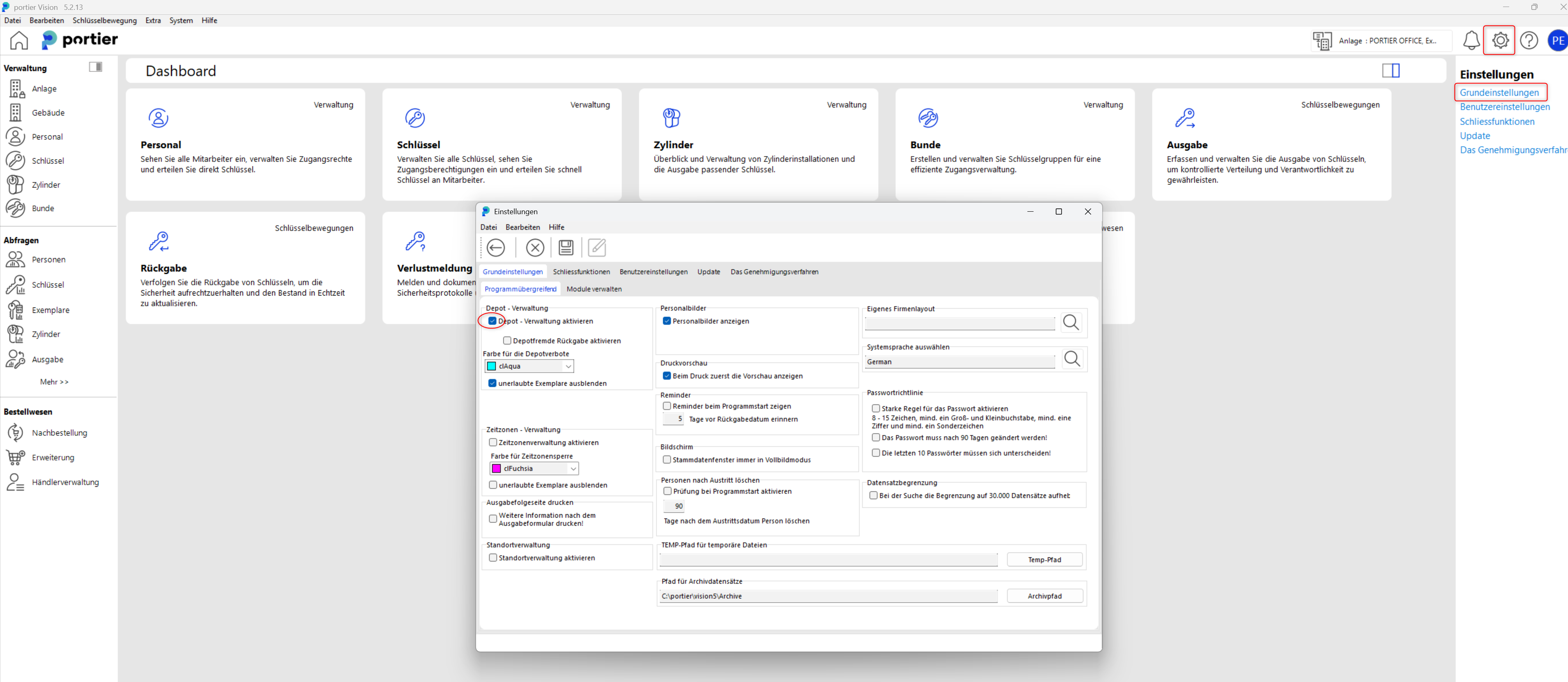
To access depot management, proceed as follows:
Click on "Edit" in the top menu bar and then select "Depot Management".
Alternatively, you can use the shortcut Ctrl+D (Ctrl+D).
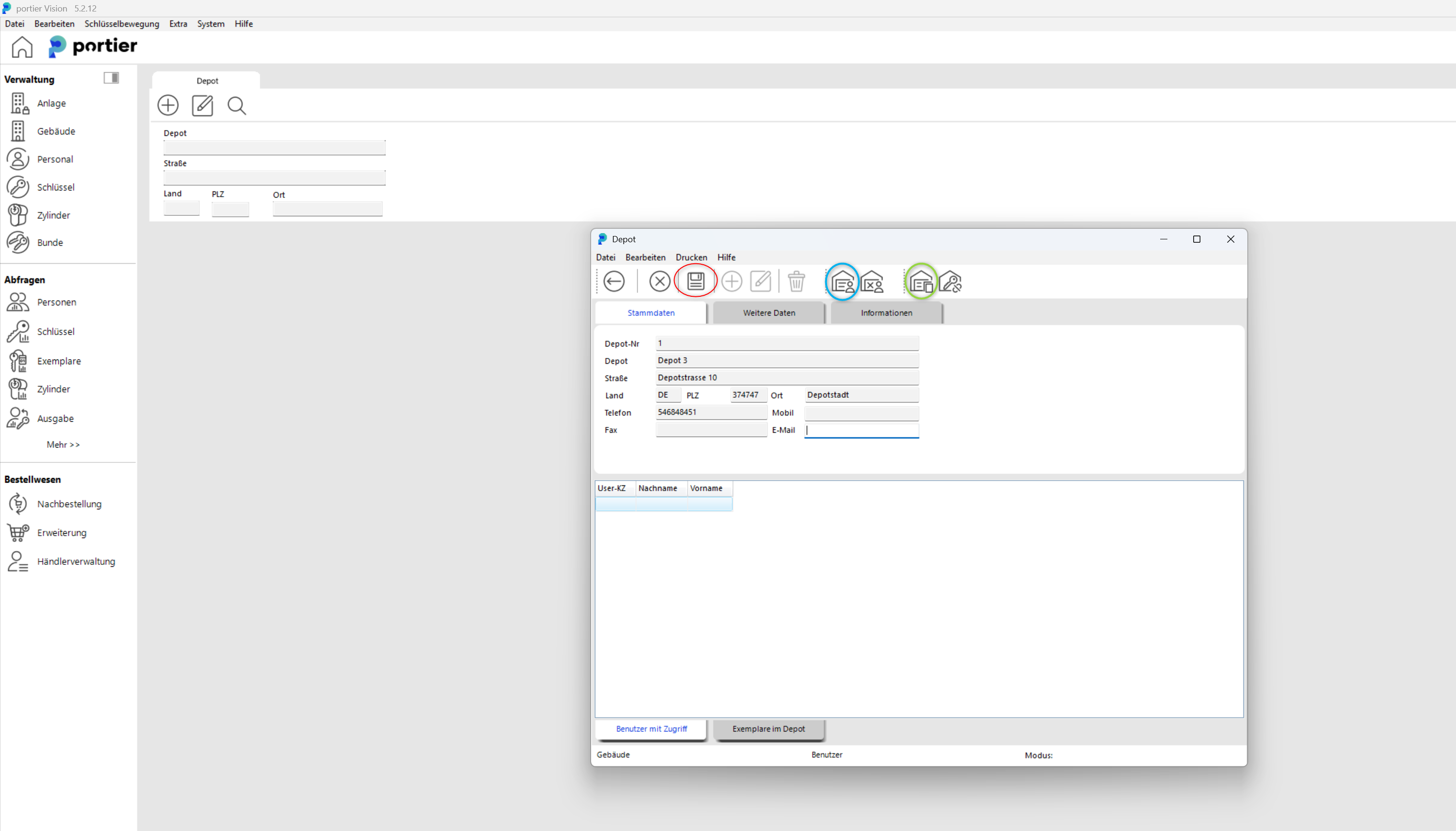
Press the plus symbol (add record).
Fill in the master data for the new depot.
Save the depot with the save symbol (red circle).
To assign a user to a depot, click on the blue marked symbol (assign user).
Select the desired user and confirm the selection.
To assign copies (keys) to a depot, click on "Assign copy to depot" (green circle).
Select the desired copy from the list and assign it to the depot.
Important:
Please make sure that all copies are uniquely assigned to a depot.
Copies that are not assigned to a depot are automatically available to all employees for issuing!
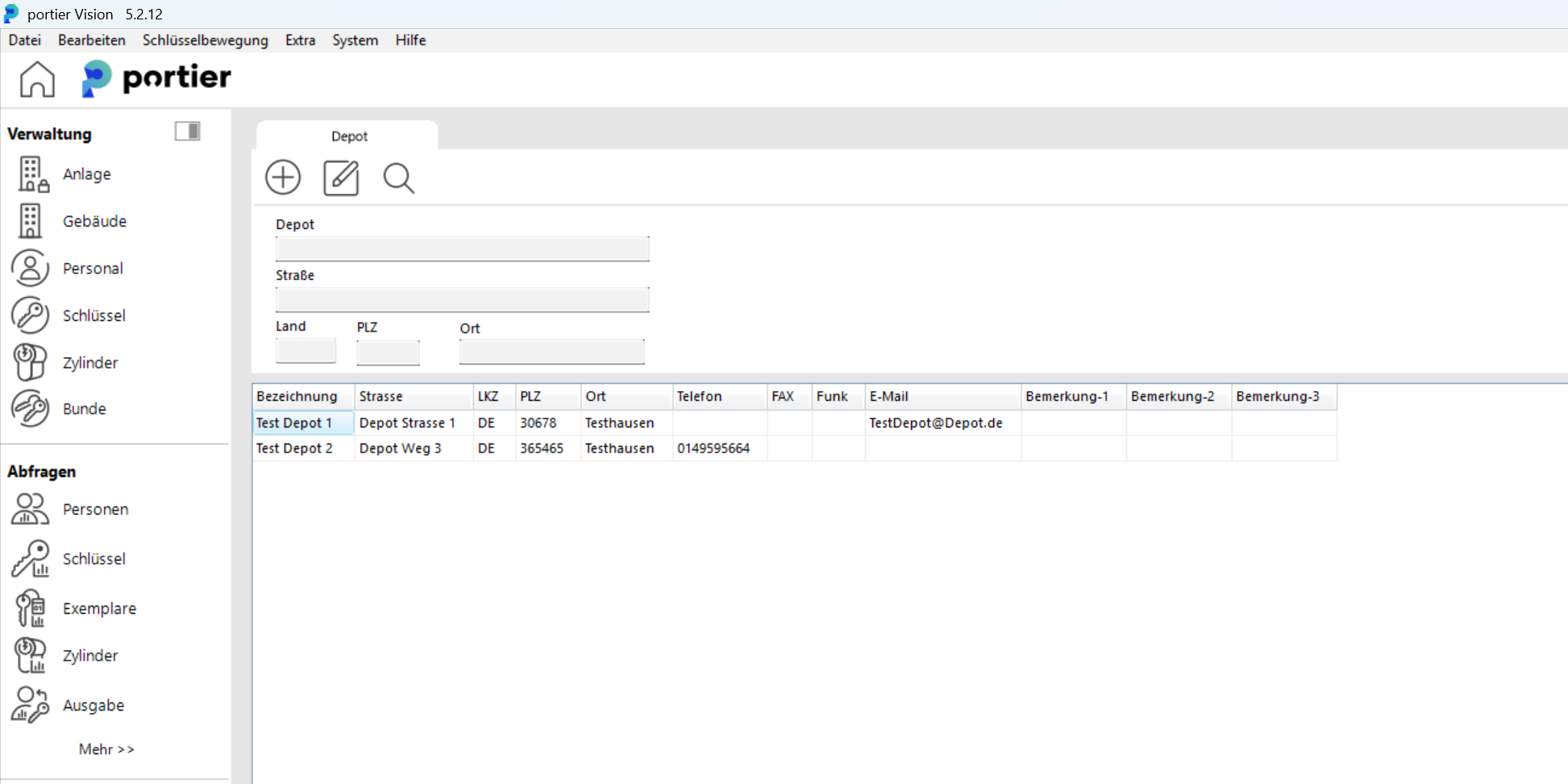
After the depots are created, you will see the following view in your Depot tab:
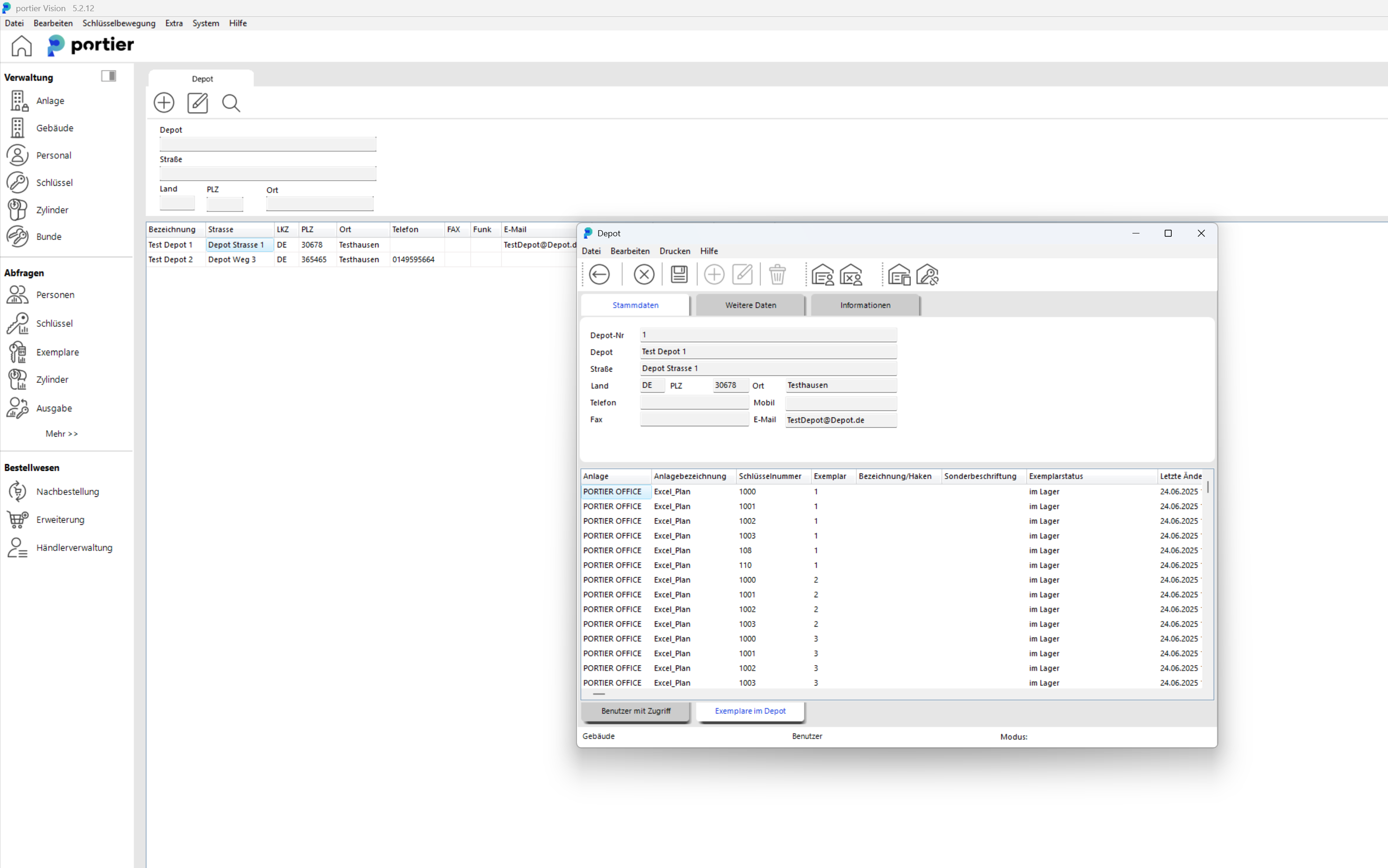
After you have added the desired users and corresponding keys to the depot, your key management is optimally organized by depots.
From this point on, you can manage and track all key issuances, returns clearly and organized per depot.
Key access:
If all keys are correctly assigned to depots and a user has no permissions for a depot, that user cannot see or issue any keys.
Admin and Supervisor permissions:
Users with the roles Administrator or Supervisor still have access to all depots and all keys, regardless of depot assignment.
Depot management in portier®VISION also offers a function where users can only order, view, or request keys or cylinders if they are assigned to the respective depot.
For more information and detailed instructions on this function, see our following article:Reorder Restrictions by Depot Assignment