In the module Administration / Cylinders, you have access to the cylinders of the current facility. Here you can create new cylinders, edit existing cylinder data, or delete cylinders.
Please note:The more carefully you work here, the more reporting options you will have later.
Attention:Only works when "Facility" is active (not Building).
In the moduleADMINISTRATION / CYLINDERS click on the toolbar buttonADD RECORD.
The windowCYLINDER
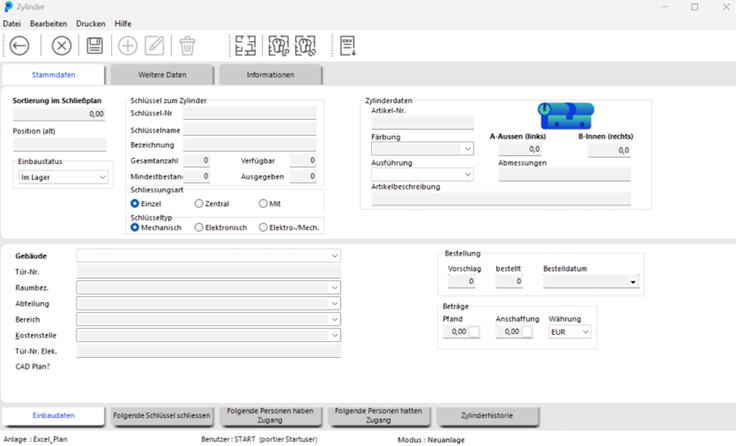
Now you can enter the data for the new cylinder.
The sorting comes from the manufacturer and corresponds to the former row in the locking plan. New sortings are purely numeric, such as 1.00, 2.00 etc. You can change them at any time.
Note:The key number is sometimes also called the locking number or lock and key number.
The total number shows the quantity of individual keys delivered with this cylinder; portier®VISION totals all keys from all deliveries.
The cylinder data in the right section describes the technical cylinder and is always provided by the manufacturer. Some manufacturers, such as ASSA ABLOY, automatically supply this data during XML import.
The installation data is recorded in the lower part of the form.
The tabs at the very bottom are updated automatically by portier during ongoing operations.
In the moduleAdministration / Cylinders display all recorded cylinders of the current facility by clicking the buttonStart Search.
Since this list can become quite long, you can also search specifically for a particular cylinder by entering the first characters of theKEY NUMBER. Perform the search by clicking the buttonSTART SEARCH. Alternatively, you can use the ENTER key. The corresponding cylinders are displayed. Select the desired cylinder and click the buttonEDIT.
Alternatively, you can also double-click on the cylinder;
in both cases, the windowCYLINDER opens. Here click the buttonEDIT. Now you can edit the existing cylinder data
portier VISION allows you to use building plans. You assign a building plan to the cylinder once and portier VISION displays the position of each cylinder in the building plan.
Please note:
You can only use the DXF and DWG formats to assign cylinders to a CAD plan. These formats are supported by all AutoCAD programs.Supported versions can be found here.
In the moduleADMINISTRATION / CYLINDERS display the cylinder (see above) that should be connected to a CAD plan.
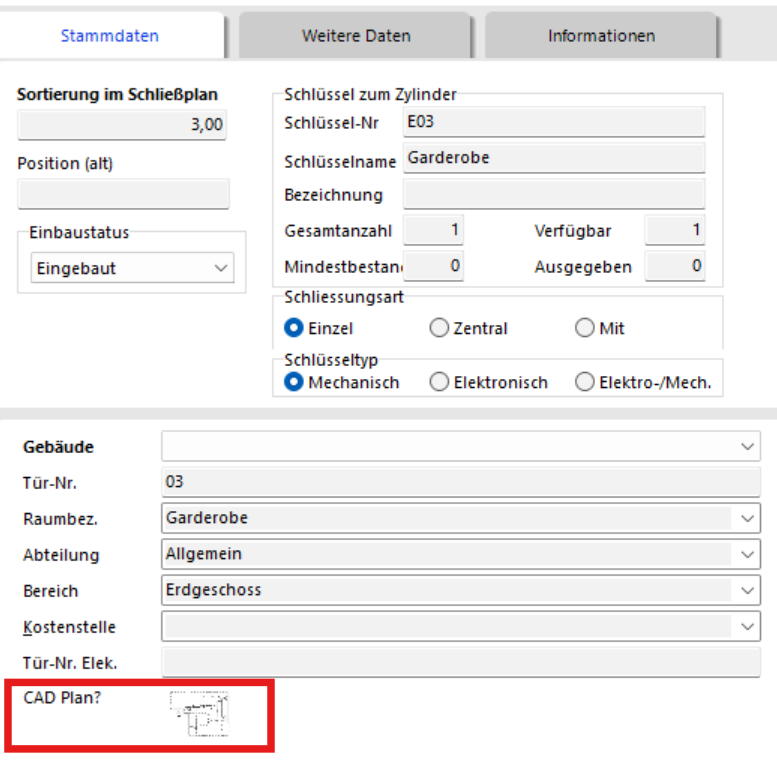
In this window, you can immediately see whether the cylinder has already been assigned to a CAD plan; you will then see a symbolic preview of the plan here.
 To assign the current cylinder to a CAD plan, click the button CYLINDER WITHCONNECT TO CAD PLAN.
Here, display the available CAD plans by clicking the buttonSTART SEARCH.
Select the desired CAD plan by clicking and leave the window by clicking the buttonACCEPT SEARCH RESULT.
The windowCAD PLAN:
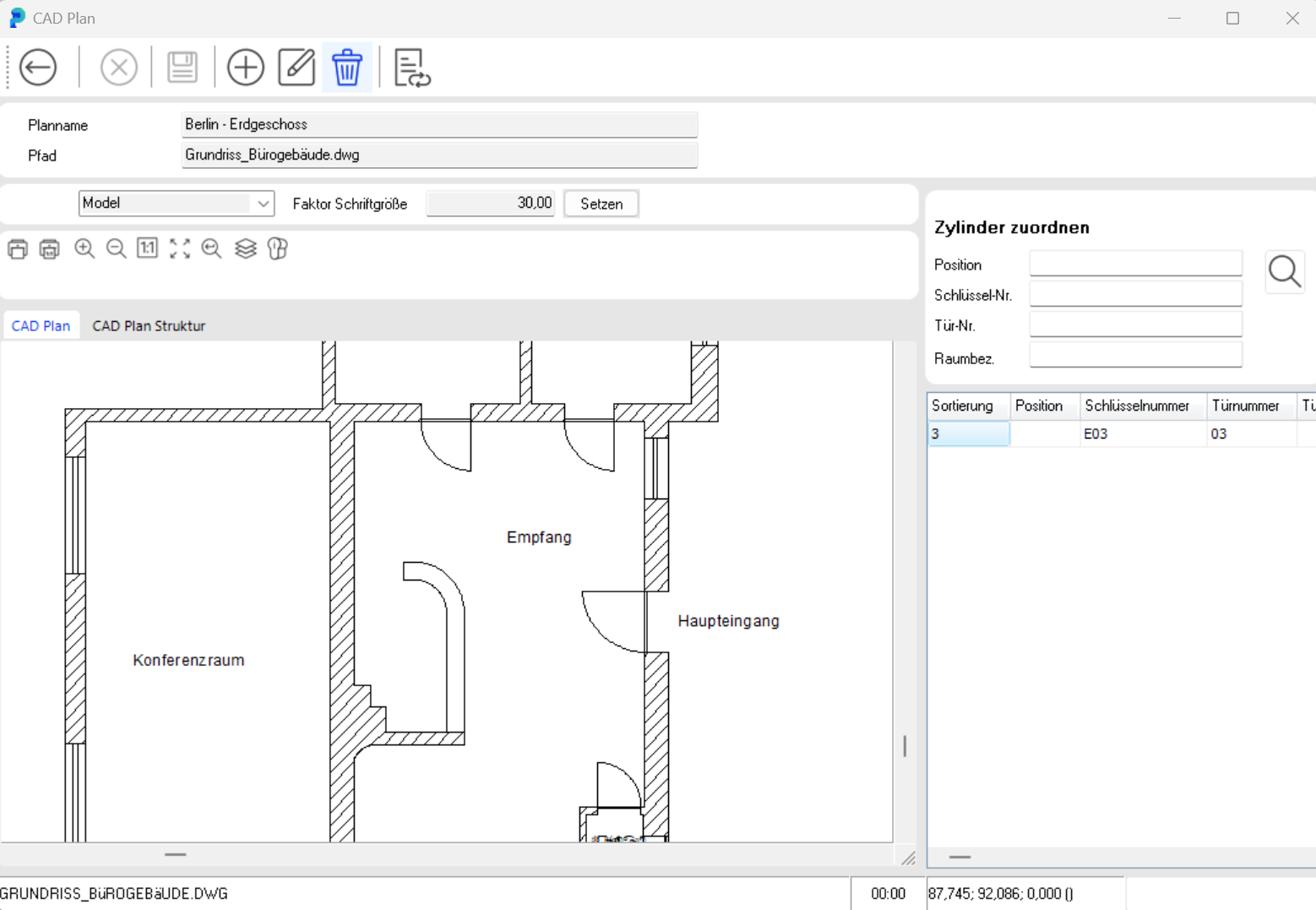
In the right part of the windowCAD PLAN you can see the current cylinder.
To assign the cylinder to a room, simply drag it while holding the left mouse button into the desired room.
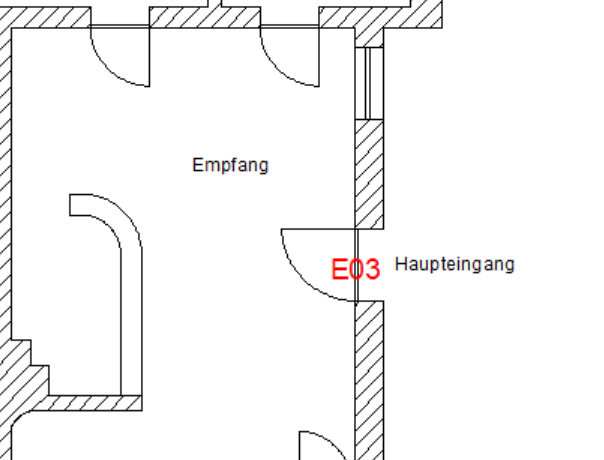
In the CAD plan, the key number of the cylinder is displayed in red:
Leave the windowCAD Plan by clicking the buttonBack.
You are back in the Cylinder window and can see from the CAD plan symbol that the current cylinder has been assigned to a CAD plan:
Leave the CYLINDER window by clicking the BACK button.
To disconnect the cylinder from the CAD plan, click the button "Disconnect cylinder from CAD plan" in the Cylinder window
Confirm the prompt by clicking the Yes button
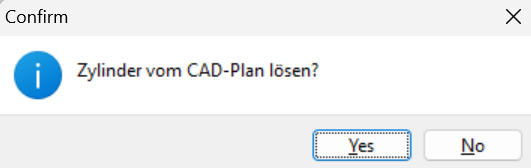
The CAD plan preview is then removed from the windowCylinder.
Alternatively to the described procedure, you can click on the red key number of the cylinder in the CAD plan with the left mouse button.
A window opens in the CAD plan that offers you various options:
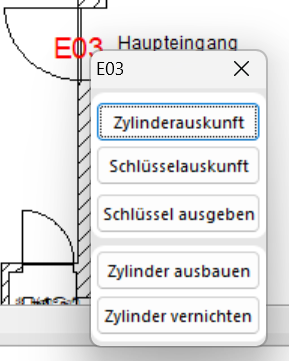
 Jump to the Cylinder window of the current cylinder
 Jump to the Key window of the current key
 Jump to the Key Movement window
 The current cylinder is removed
 The current cylinder is destroyed
When you have selected a cylinder for editing (see above), you will find five tabs in the lower part of the CYLINDER window that show you further information about the key.

 Where is the cylinder currently installed?
Please note: to make changes, the cylinder must be opened for editing by clicking the EDIT button
 Which keys lock this cylinder?
Central and master key functions are displayed as well as all group and function keys.
 Who has access to this room (via the cylinder)?
 Who previously had access to this room?
 Where was the cylinder previously installed?