In portier VISION, each cylinder has its own record. In the MANAGEMENT / CYLINDERS module, click the ADD RECORD button in the toolbar. The CYLINDER window opens.
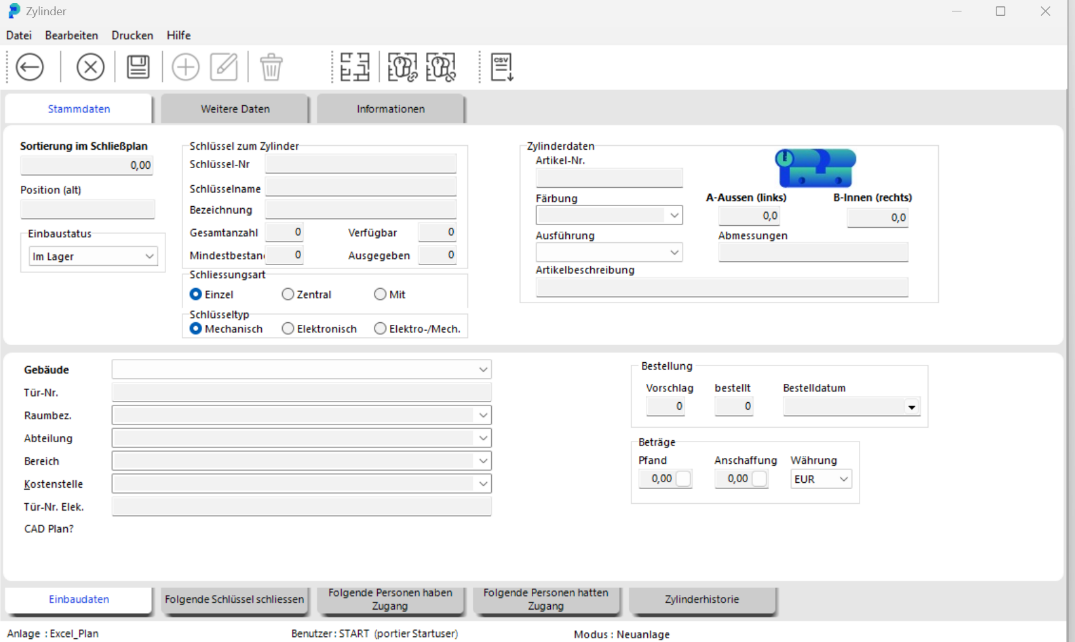
In the upper section "KEYS FOR CYLINDER", enter the relevant cylinder data. In the Installation Data section, you can specify exactly where the cylinder has been installed.
Save the entered data by clicking the SAVE button.
Close the CYLINDER window by clicking the BACK button.

The cylinder is now available in the system. For each key associated with the cylinder, portier creates its own record automatically. The link between cylinder and key is established via the key number (also called locking number).
Important: the key number cannot be changed after initial entry.
In the MANAGEMENT / CYLINDERS module, enter the data of the cylinder you are looking for in the CYLINDERS tab (e.g. the key number) and press ENTER. The cylinder is displayed.
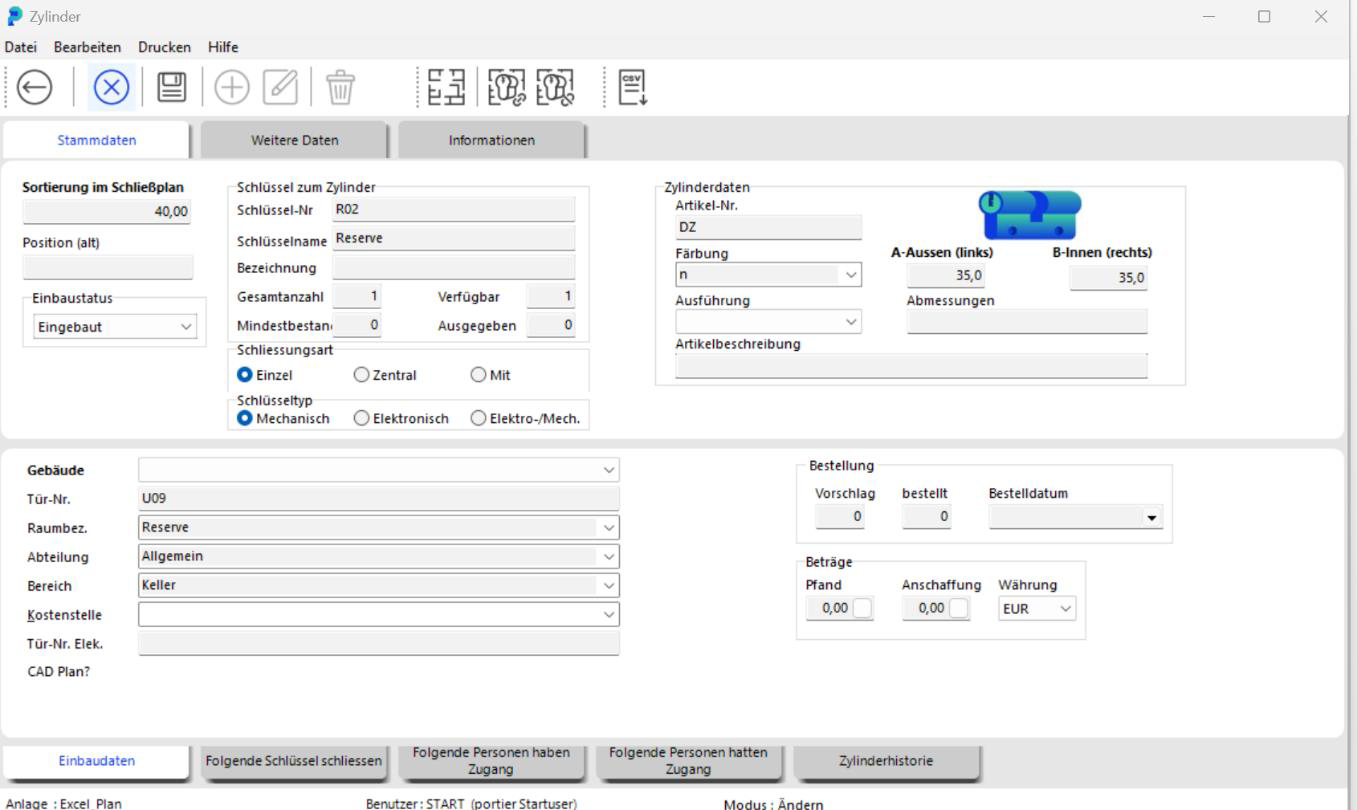
Double-click the cylinder to open the CYLINDER window. In the window, click the "Installation Data" tab to edit the cylinder details. Save the changes by clicking SAVE.

Key details cannot be changed in the cylinder screen after the initial entry. For changes, open the corresponding key screen in MANAGEMENT / KEYS. Changes to key numbers are not possible.