OverviewTo import locking system data into portier Vision Companion, you will typically receive your data from the manufacturer or dealer in a supported file format.With portier Vision 5.4.4, you can import both XML and KWD files, which are standard file formats for locking systems. These allow you to transfer different types of locking system data into the system.KWD files are commonly provided by manufacturers such as ASSA ABLOY, KESO, dormakaba, SWISS, and BKS, and are supported from KWD version 8 onwards.
The import process for KWD files is identical to the XML import.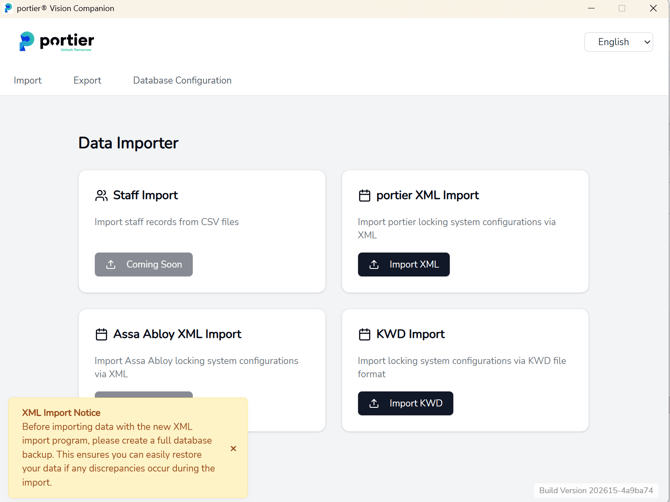
PrerequisitesXML or KWD file containing your locking system dataAccess to portier Vision CompanionRequired user permissions for importing data
The portier®Vision STANDARD version supports only one facility.
A default (empty) facility is already provided.
Before starting the import:
Enter the correct manufacturer name and facility number
(usually found at the beginning of the XML/KWD file)
Pay attention to spaces in the facility number
Go to Facilities and click the magnifying glass to search
Open the default facility with a double-click
Click the tool icon to edit: ManufacturerFacility number
Manufacturer
Facility number
Before starting the import, create a backup of your database.
This ensures that you can restore the previous state in case the import fails or incorrect data is imported.
Make sure your XML or KWD file is available and ready for upload.
Open portier Vision
Navigate to System
Select Facility Import (XML)
Open portier Vision Companion
Go to the Import tab
In the “portier XML Import” tile, click “Import XML”
Select your XML or KWD file
Click “Import XML File” to start the import process
Start the import as described above
Wait for the process to complete
Verify the imported data for: CompletenessAccuracy
Completeness
Accuracy
After a successful import, your locking system data (keys, cylinders, structures) will be available in portier Vision and can be managed within the system.