portier® VISION refers to locking systems and other locking systems as "Installations".
Electronic access systems, any collection of related keys (e.g. from display cases or padlocks), or special locking systems (e.g. all electrical panels) can all be Installations.
You define which locking elements belong together and thus form an Installation.
Typically, an Installation is a locking system with locking cylinders, corresponding keys, and function or group keys.
Modern locking systems often also include transponders and/or mechanical keys with a chip attachment (mechatronic elements).
A matrix shows which keys operate which locks — this is the locking plan.
portier® VISION enables you to correctly represent and manage such installations.
Cylinders (or electronic readers) belonging to such installations are typically installed in one or more buildings.
You can therefore also manage buildings in portier®.
"Buildings" are the physical structures you manage. Halls on a site or floors in an office complex can also be managed as individual "buildings" (e.g. rental floors or branches).
When you select an installation for editing, it does not matter which buildings the associated cylinders are in. Your access right always refers to all cylinders of that installation, regardless of which building they are installed in.
When you activate a building, you have access (depending on your rights) to all cylinders installed in it, regardless of which installation they belong to.
Note: if you have only one building and one installation, you can skip this section.
Note: to create a new building or installation, you must be logged in as Supervisor or Administrator.
 You can see at any time whether you are currently in an installation or a building by looking at the status bar at the bottom of the screen.
Note: to create a new building, you must be in an installation. To create a new installation, you must be in a building. As a Supervisor, you can create an installation or building at any time in the Supervisor module.
 Switch between installations and buildings by clicking the Switch Installation and Building button in the toolbar.
In the Building/Installation Selection window, switch to the desired building or installation by double-clicking the corresponding entry.
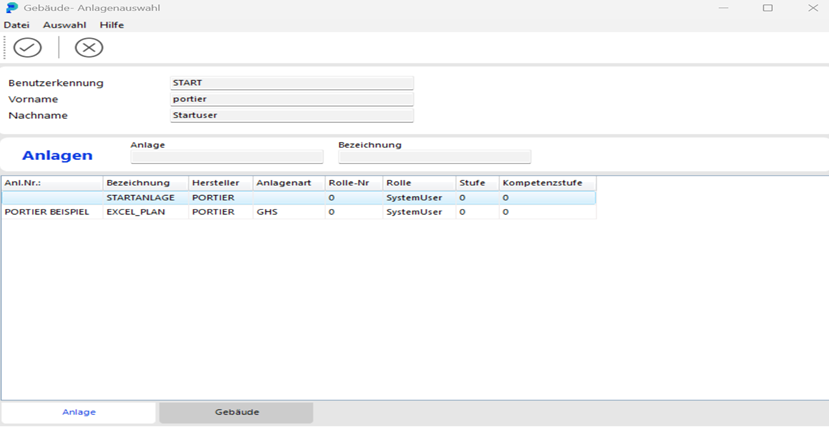
As an alternative to double-clicking, select the desired building or installation with a single click and then click the Select Building or Select Installation button.
In the MANAGEMENT / INSTALLATION module, click ADD RECORD in the toolbar.
The INSTALLATION window opens.
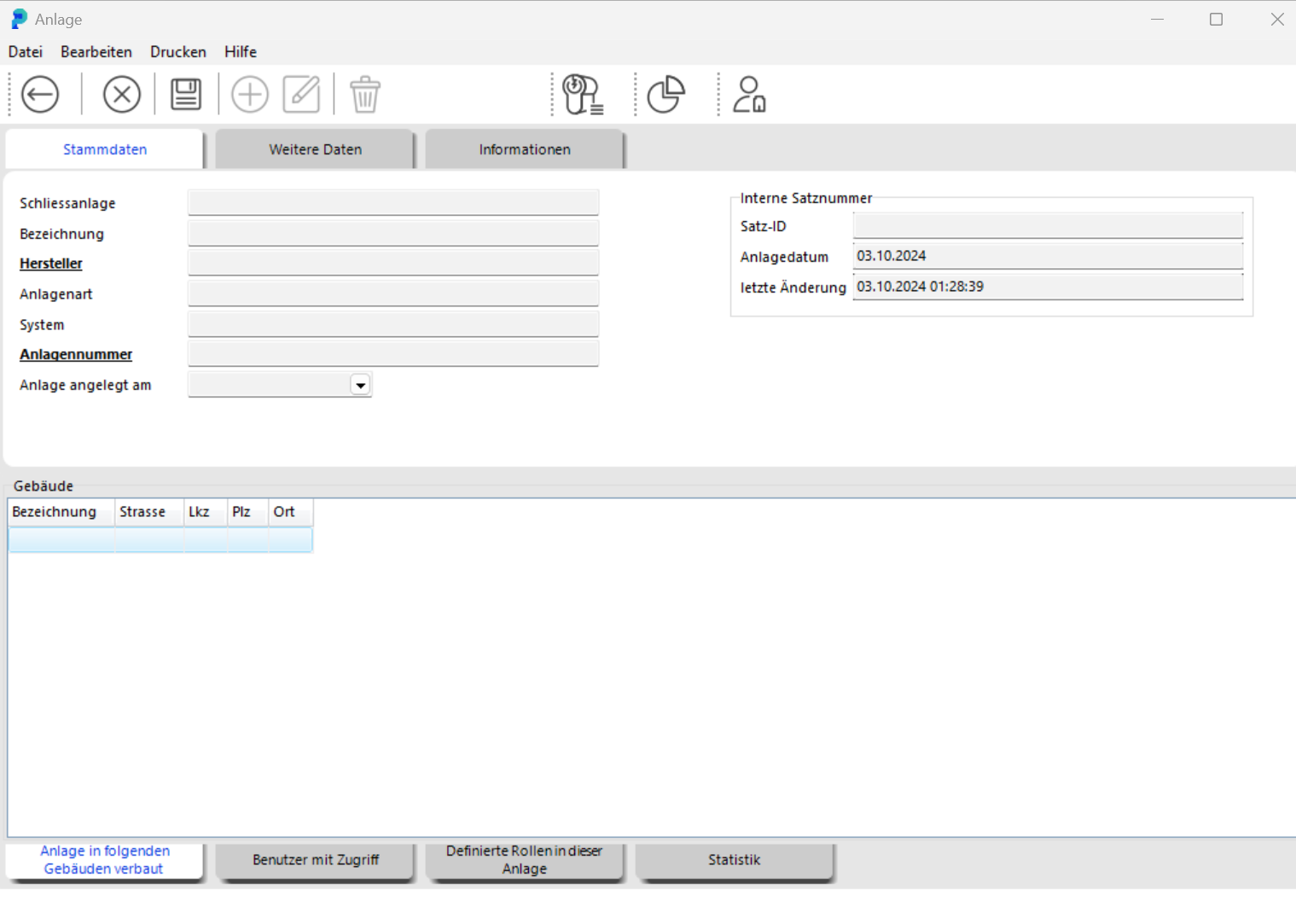
Enter the data for the new installation here. Mandatory fields are identified by their bold label.
portier® VISION requires the mandatory fields "Manufacturer" and "Installation Number" to correctly handle later imports.
 Save the new installation data by clicking SAVE and leave the window by clicking BACK.
The data is also saved if you leave the INSTALLATION window directly by clicking BACK.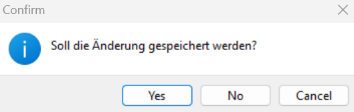
In that case, confirm the security prompt with Yes.
Creating a new building works the same way.
 In the MANAGEMENT / INSTALLATION BUILDING module, click SEARCH to display all installations and buildings.
Select the desired installation with a mouse click. To edit it, click EDIT. Alternatively, double-click the installation or building.
The INSTALLATION or BUILDING window opens. Click EDIT to modify the data.
 Save the changes by clicking SAVE and leave the window by clicking BACK.
Data is also saved if you leave directly via BACK. Confirm the security prompt with Yes.
Editing a building works the same way.
 To delete an installation, click DELETE INSTALLATION or DELETE BUILDING.
A security prompt is displayed first.
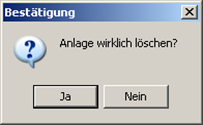
Confirm with Yes. If keys are still assigned to the installation, it cannot be deleted — you will receive a corresponding message:
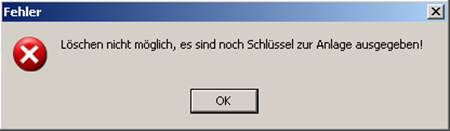
Deleting a building works the same way.
 When an installation is open, click the
  Statistics button or the Statistics tab to view an overview of keys and cylinders and their status.
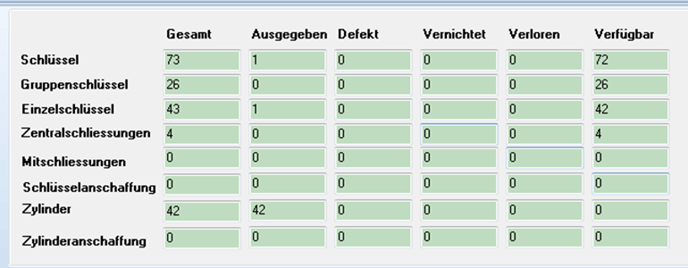
When an installation is open, you will see four tabs at the bottom of the window that provide additional information.

Installation installed in buildings: shows which buildings contain cylinders from the current installation.
Users with access: shows which users have access to the current installation.
Defined roles: shows which roles are defined for the current installation.
Building plan: links to the associated CAD building plan, if available.