In the ADMINISTRATION / PERSONNEL module, click START SEARCH to display all recorded persons.
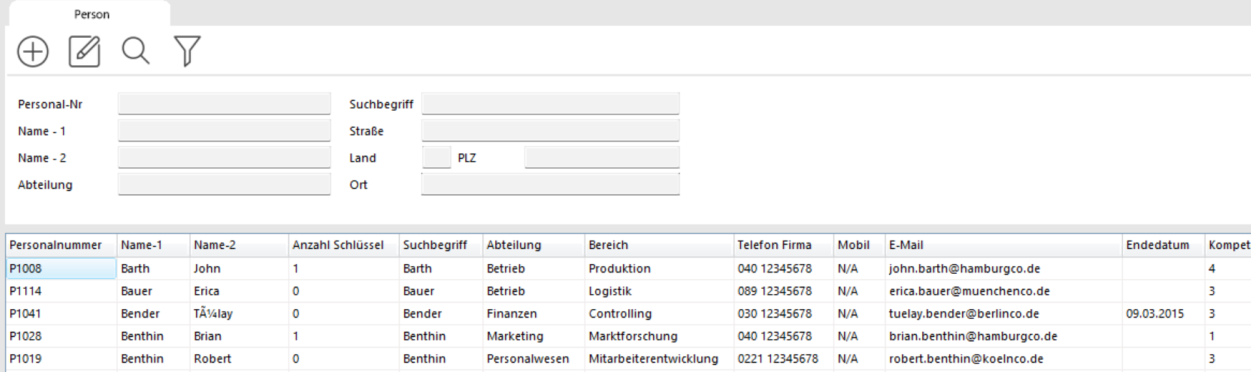
If the list is very long, you can search for a specific person by entering the first letters of their last name, then pressing Enter or clicking SEARCH.
You will see all persons whose last name begins with the letters you entered.
Select the person you want to edit by clicking them, then click the EDIT button. Alternatively, you can double-click the person directly.
In both cases the PERSONNEL window opens. Click the EDIT button there. You can now update all fields.
Save the changes by clicking SAVE and close the PERSONNEL window by clicking BACK.
You can assign a photo in JPG format. Open the record for editing, select the "Additional Data" tab, and upload the photo there.
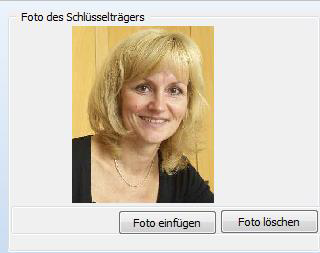
If the photo buttons are missing, go to System → Settings and check the Show Personnel Photos option.
Additional information: when editing or creating a key holder, you will see two tabs — Master Data and Additional Data.
Master data fields are self-explanatory. The "Additional Data" tab provides space for extra information:
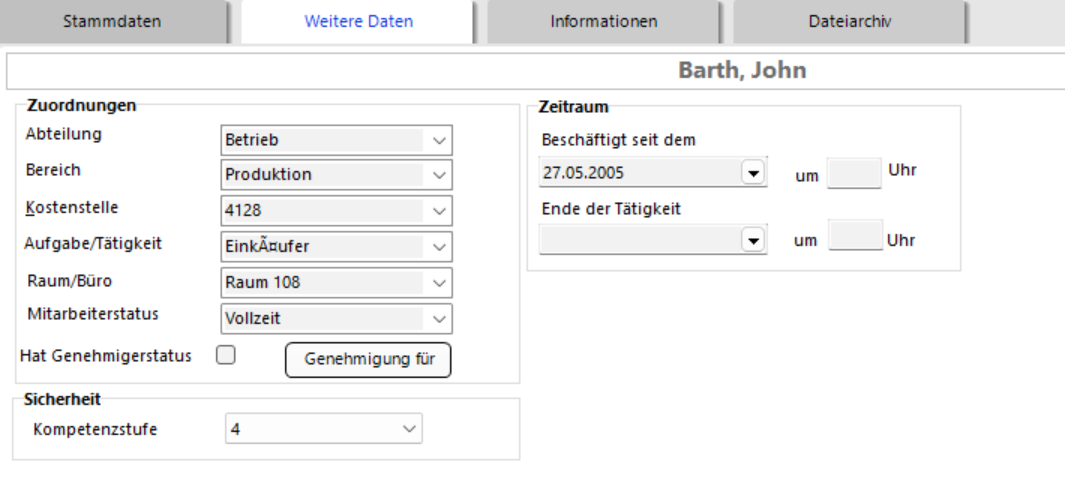
Fields that show a small triangle on the right edge can be pre-filled with your own terms via the selection lists. Fields with approval status determine whether this person can authorise key issuances.
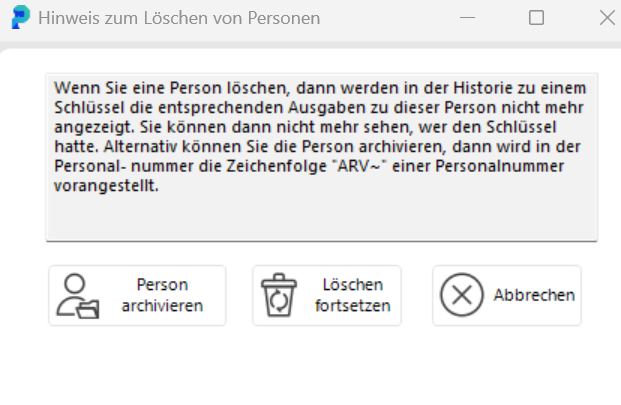
To delete a person, click the DELETE PERSON button in the PERSONNEL window. You will be asked to confirm.