In portier® VISION, all actions can be performed using the mouse. The right mouse button is particularly useful throughout the application. Many actions can also be triggered via function keys and keyboard shortcuts.
In portier® VISION 5, the biggest difference from previous versions is that records are immediately available for editing by default. There is no longer a need to click an Edit button first to unlock a record.
Mandatory fields in input windows are always identified by their bold field label.
Save your changes as usual by clicking the  Save button. You can leave the window without saving by clicking Cancel.
Data is also saved when you leave the window by clicking Back. In that case, confirm the security prompt with Yes.

The menu bar provides one of several ways to activate commands and functions.
Click the menus with the mouse, or use the keyboard shortcut ALT + underlined letter, e.g. ALT+V to open the View menu.

Home — takes you to your personal Quick Tiles Dashboard
System — switch between buildings, change your password, and exit portier® VISION
Management — edit objects, switch to depot and dealer management, place reorders and extension orders, search and replace data, and more
Key Movements — commands for key transactions
Import — commands for data import
Tools — CAD building plans, deposit management, locking plan printing, search and replace, and daily tasks menu
Settings — system settings, user management, role assignment, staff data import, installation import, CSV cylinder import and export
Help — access the help function
Installation — the active installation you are managing; switch to other installations from here
Notifications — all notifications such as approval requests and reminders
Quick access to system settings
Quick access to help
Your initials — quick access to your user settings
The Navigator groups related program functions into their corresponding modules.
Alongside the menu bar, the Navigator provides another way to access the commands and actions you need.
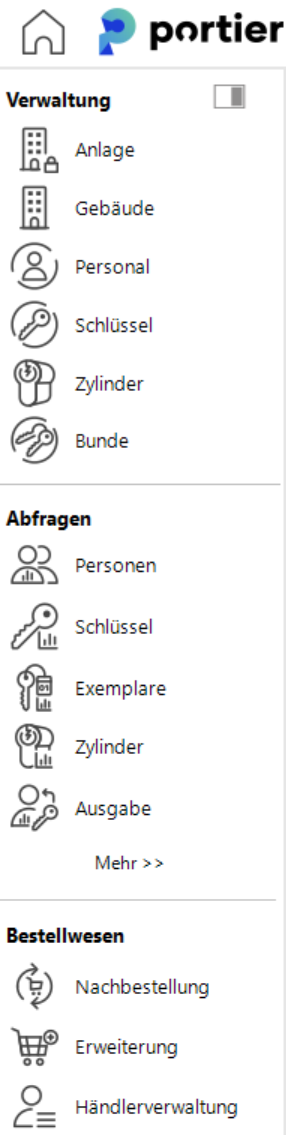
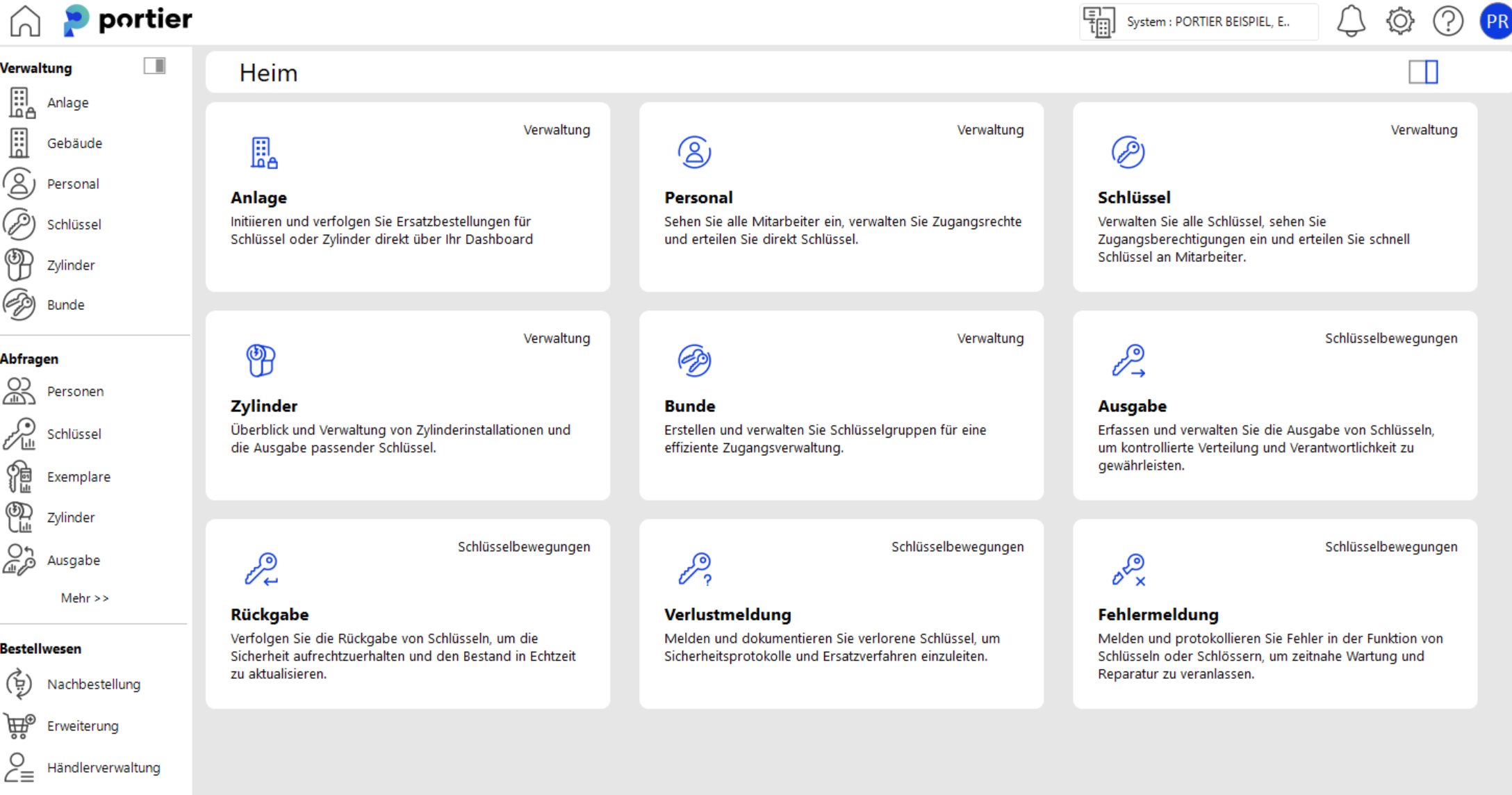
The Quick Tiles Dashboard in portier® VISION provides a flexible and intuitive way to display frequently used functions and commands directly on the start page for quick access.
Use "Home" to return to your personal Quick Tiles Dashboard at any time.
Functions of the Quick Tiles Dashboard
The toggle on the right side lets you customise the tiles to suit your needs.
Customisable tiles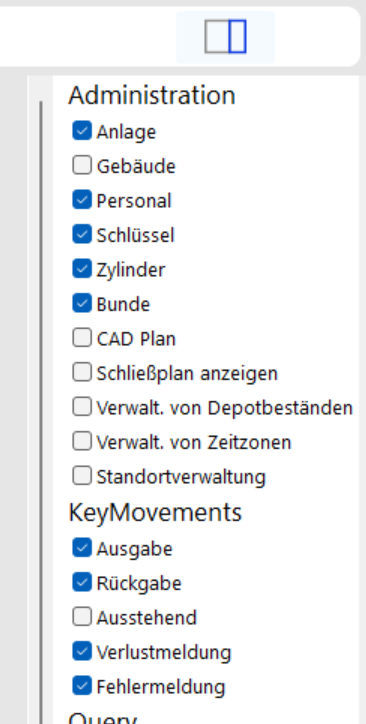 : Add the functions you use most often as tiles to your dashboard.