When delivered, the default username is START and the default password is also START. For instructions on creating new users, see the Users section below.
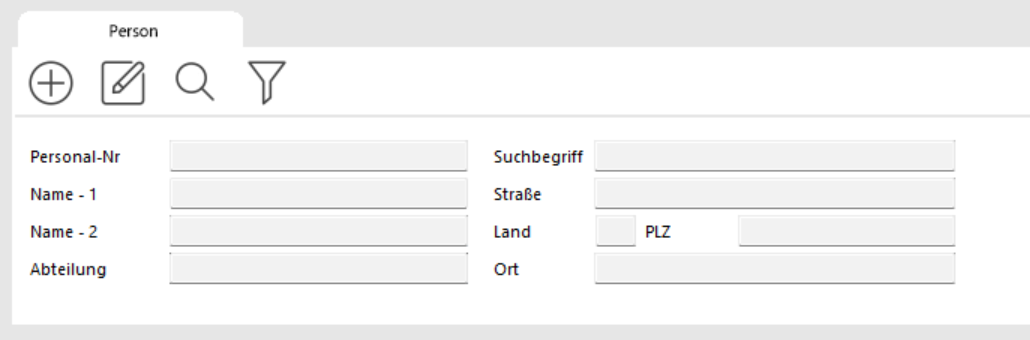
In the MANAGEMENT / PERSONNEL module, enter the name of the key recipient in the NAME – 1 search field (the first letters of the surname are sufficient), then click SEARCH.
A list of matches is displayed.
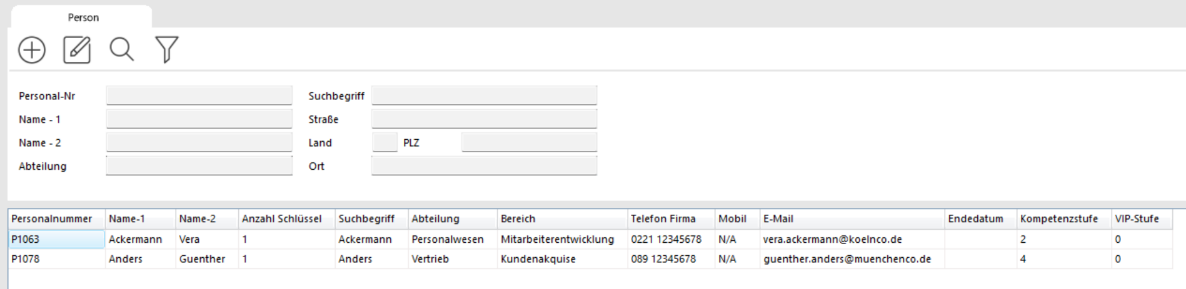
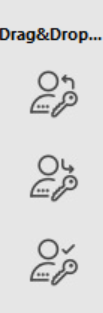 Find the desired recipient in the list and drag them with the left mouse button held down to the ISSUE button on the right.
 If the person is not yet in the system, click ADD PERSON.
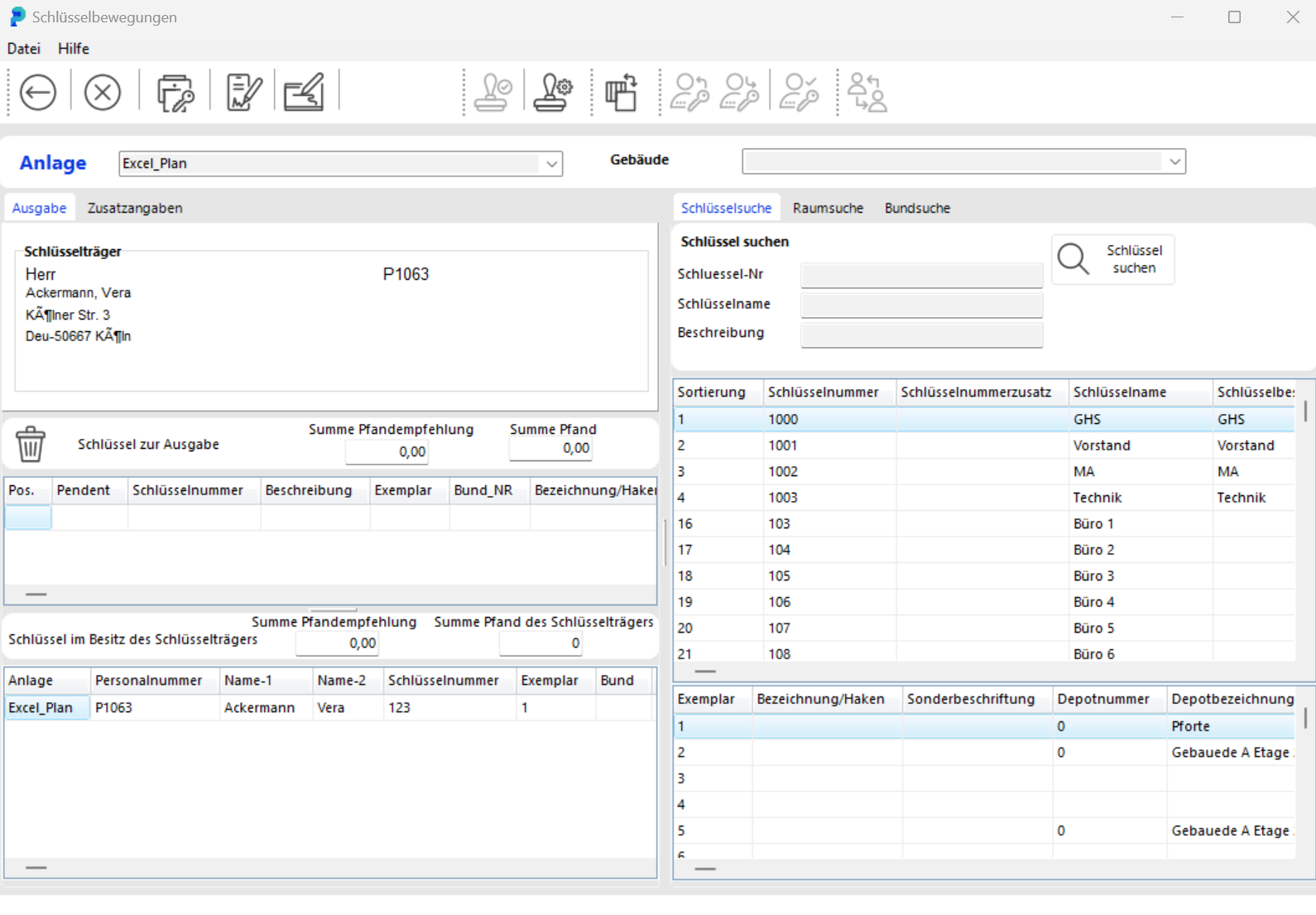
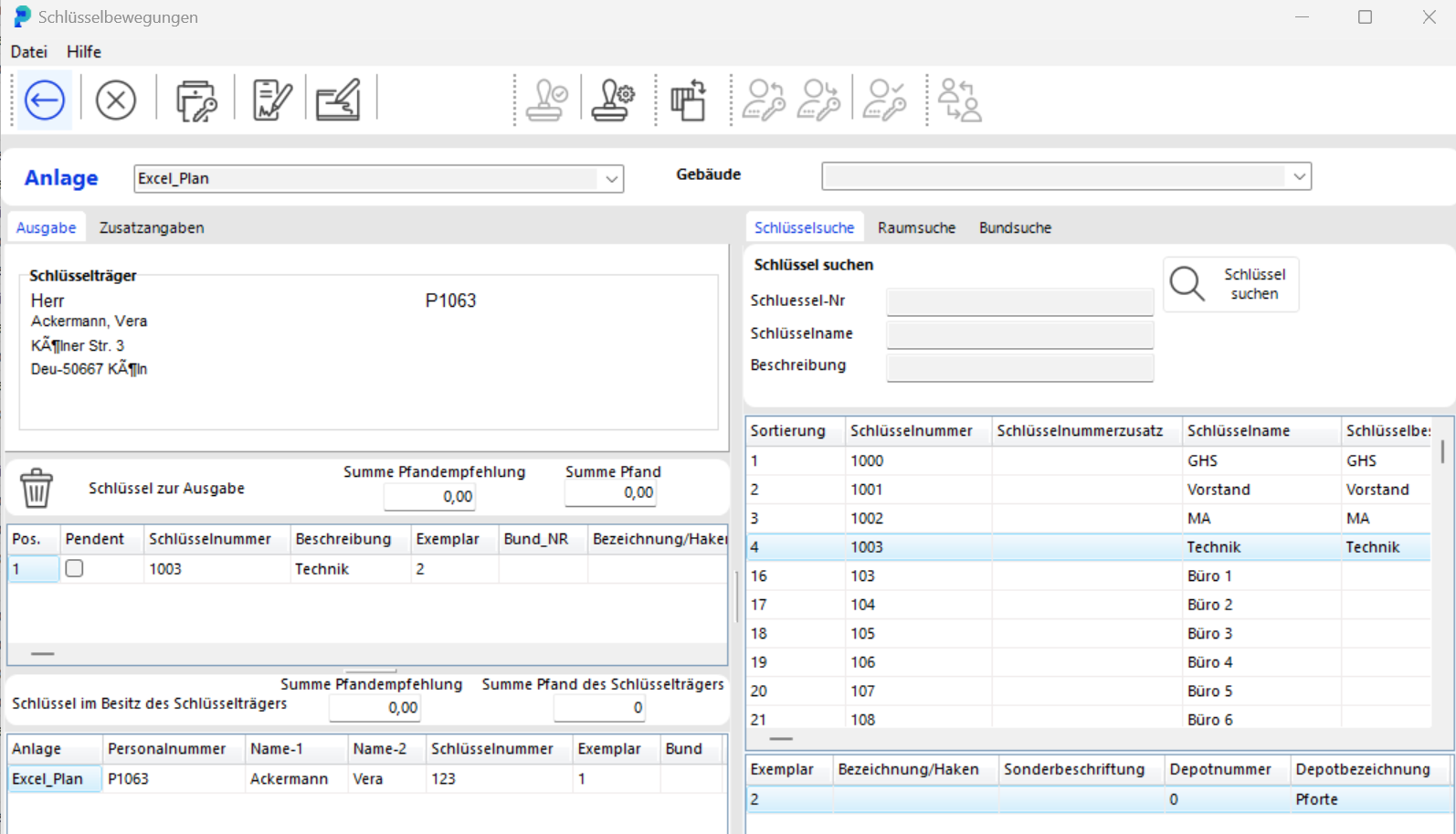
The KEY MOVEMENTS window opens.

The recipient's details are already filled in.
On the right side of the window, in the Key Search tab, enter the first characters of the key number in the Key Number field and click the SEARCH button.

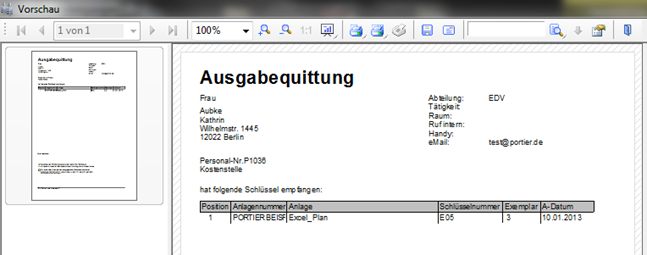
Click PREVIEW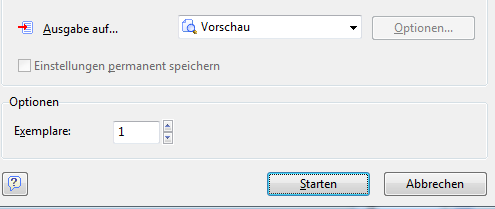 to display a preview of the issue receipt.
In the MANAGEMENT / PERSONNEL module, enter the key holder's name in the NAME – 1 field and click START SEARCH.
A list of matches is displayed.
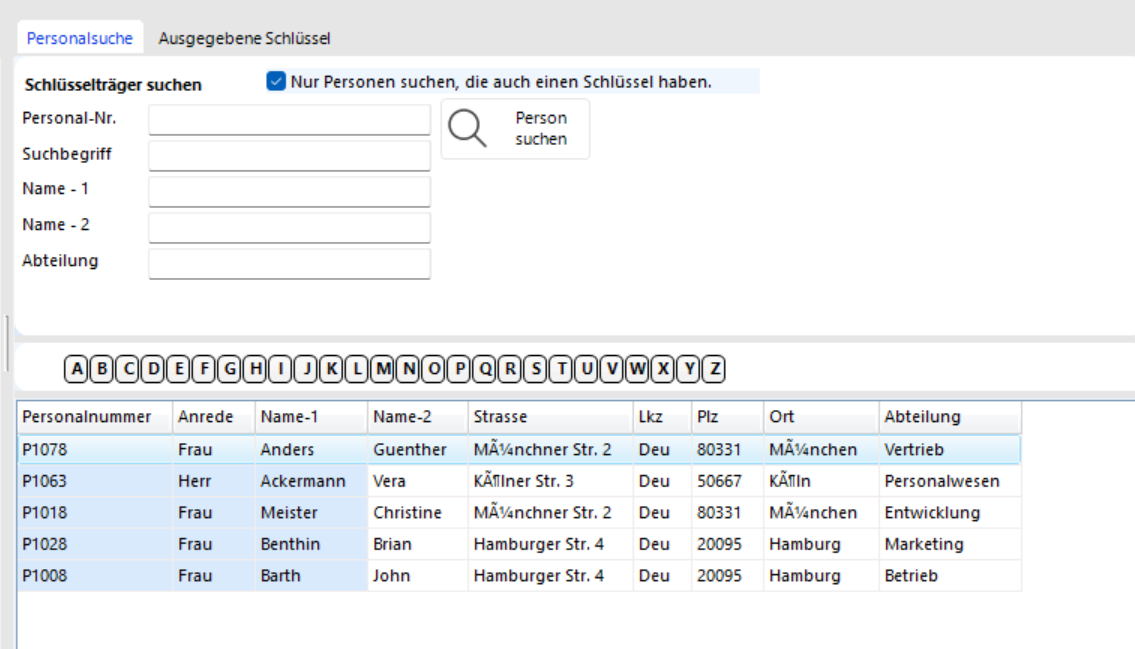
Locate the desired key holder in the list.
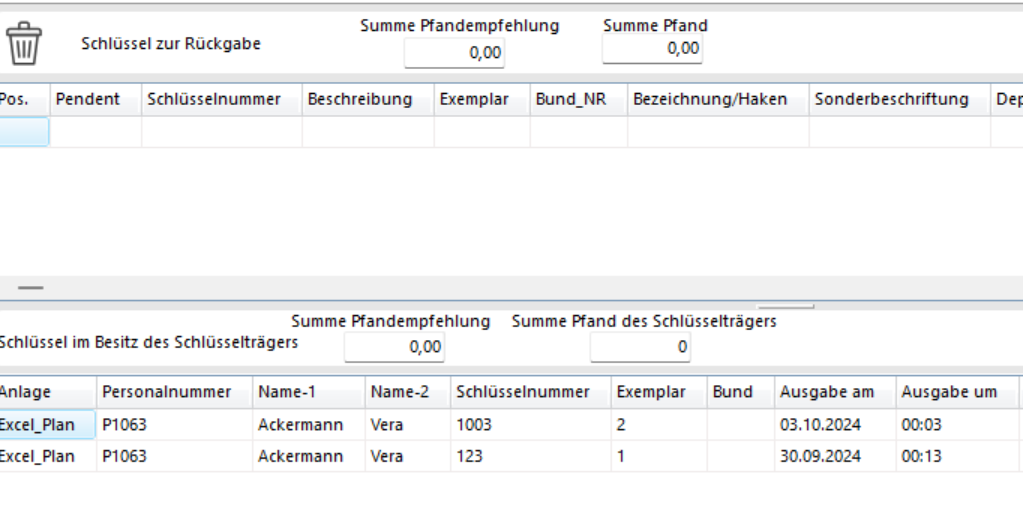
The lower part of the window shows which keys the holder currently possesses.
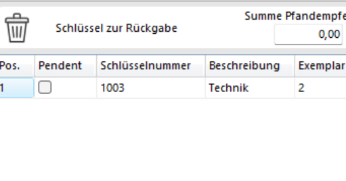 Double-click the key to be returned. It is moved into the KEYS FOR RETURN field in the middle section of the window.
 If the holder has multiple keys and you accidentally selected the wrong one, click DELETE POSITION (trash icon) to remove it from the return list.
 Post the key return by clicking BOOK.
 Click KEY LOSS in the toolbar or press F7.
The KEY MOVEMENTS – LOSS window opens.
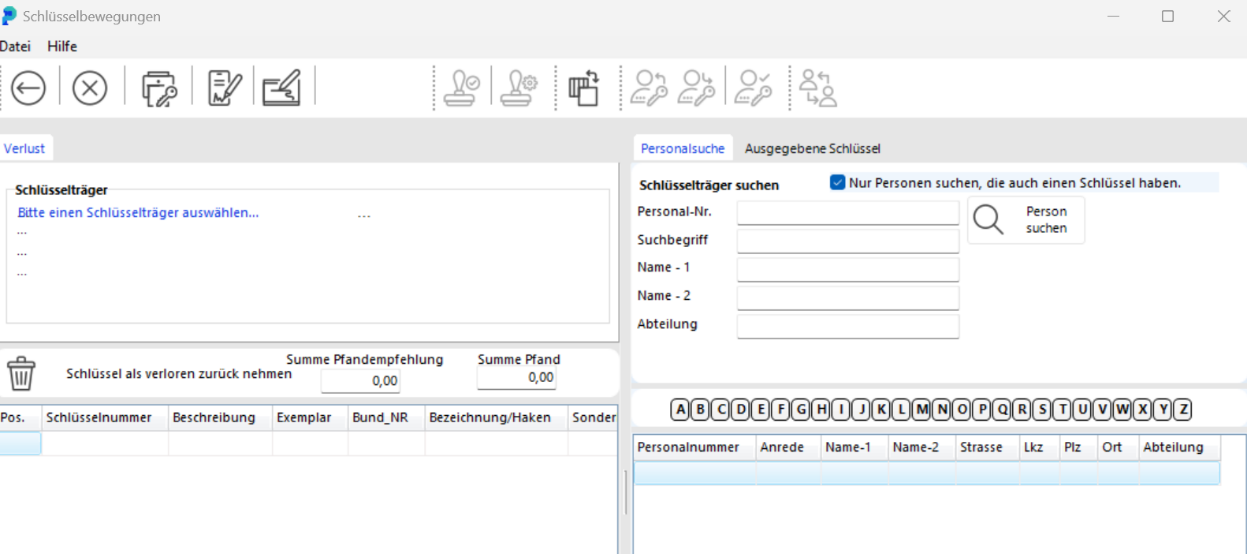
Enter the first letters of the key holder's surname in the NAME – 1 field. Click SEARCH PERSON to display the list of matches.
Alternatively, search for the key by key number. Click the ISSUED KEYS tab and enter the key number. Click SEARCH KEY to show all holders of that key.
Double-click the desired key holder in the lower section. The holder's details are transferred.
 All keys in the holder's possession are listed in the lower section.
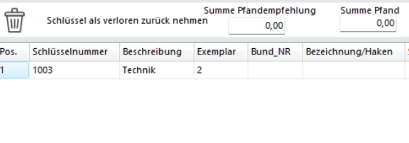 Double-click the lost key. It is moved into the RETURN KEYS AS LOST list.
 If multiple keys are shown and you selected the wrong one, click DELETE POSITION to remove it from the loss list.
 In the DESCRIPTION OF CIRCUMSTANCES field, you can record the key holder's account of the loss. This entry is printed on the form but is not saved separately.
 Post the loss report by clicking BOOK.
 Click KEY DEFECT in the toolbar or press F8.
The KEY MOVEMENTS window opens.
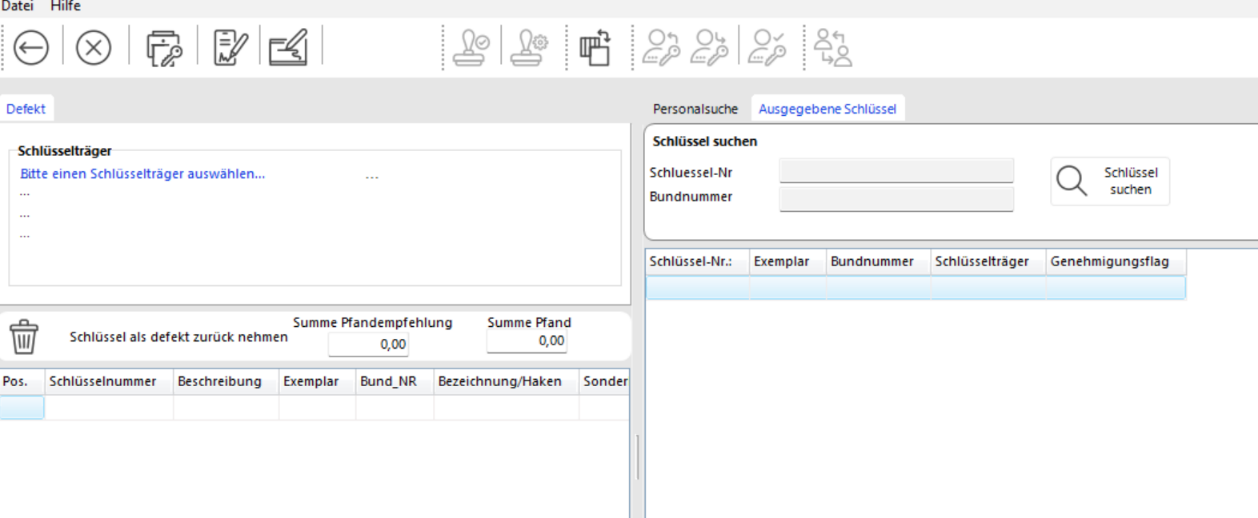
Follow the same steps as for Key Loss. The key will be posted with the status DEFECTIVE.
 In the MANAGEMENT / PERSONNEL module, click ADD RECORD in the toolbar.
The PERSONNEL window opens.
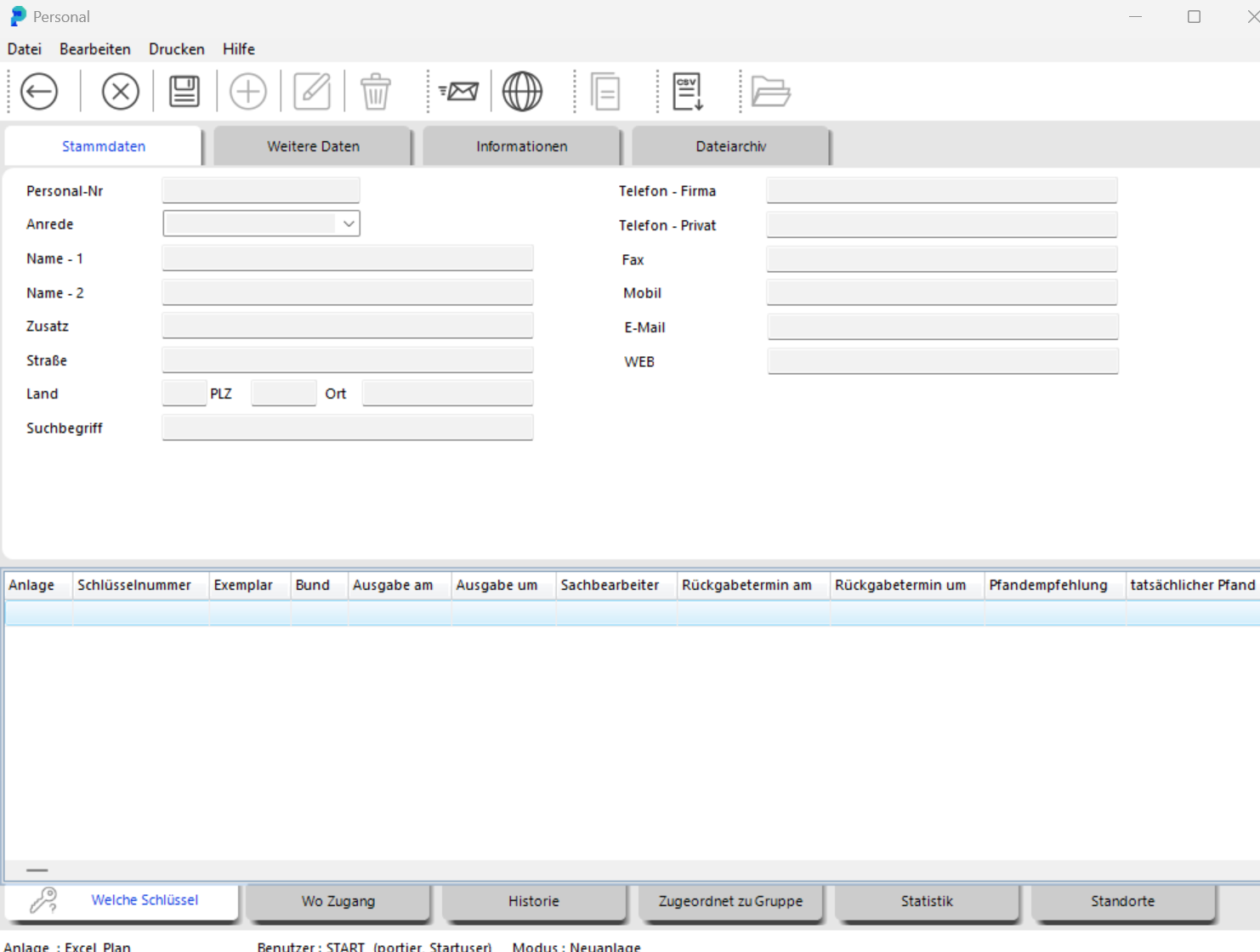
Enter the key holder's surname in the NAME – 1 field. The NAME – 2 field is for the first name. We strongly recommend staying consistent with the field assignment you choose from the start.
 Save the data by clicking SAVE. Note: you can complete the key holder's details at any time later.
 Close the PERSONNEL window by clicking BACK.
The person is now available as a key holder. During key issue, you can also create a new key holder on the spot using the ADD PERSON button.
In portier® VISION, each cylinder has its own record.  In the MANAGEMENT / CYLINDERS module, click ADD RECORD in the toolbar.
The CYLINDER window opens.
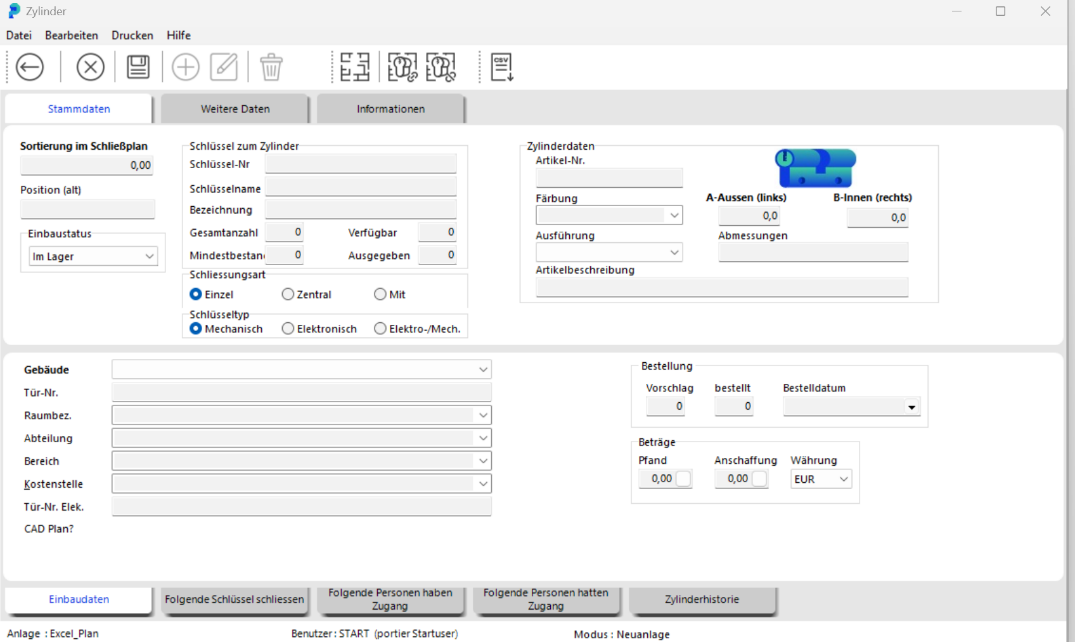
In the upper section "KEYS FOR CYLINDER", enter the relevant cylinder data. In the Installation Data section, specify where the cylinder is installed.
Save the data by clicking SAVE.

Close the CYLINDER window by clicking BACK.
The cylinder is now available. portier creates a separate key record for each key associated with the cylinder and provides exactly the number of copies you entered in the Total Count field. The link between cylinder and key is via the key number. Important: the key number cannot be changed after initial entry.
In the MANAGEMENT / CYLINDERS module, enter the cylinder data (e.g. key number) in the CYLINDERS tab and press ENTER. The cylinder is displayed.
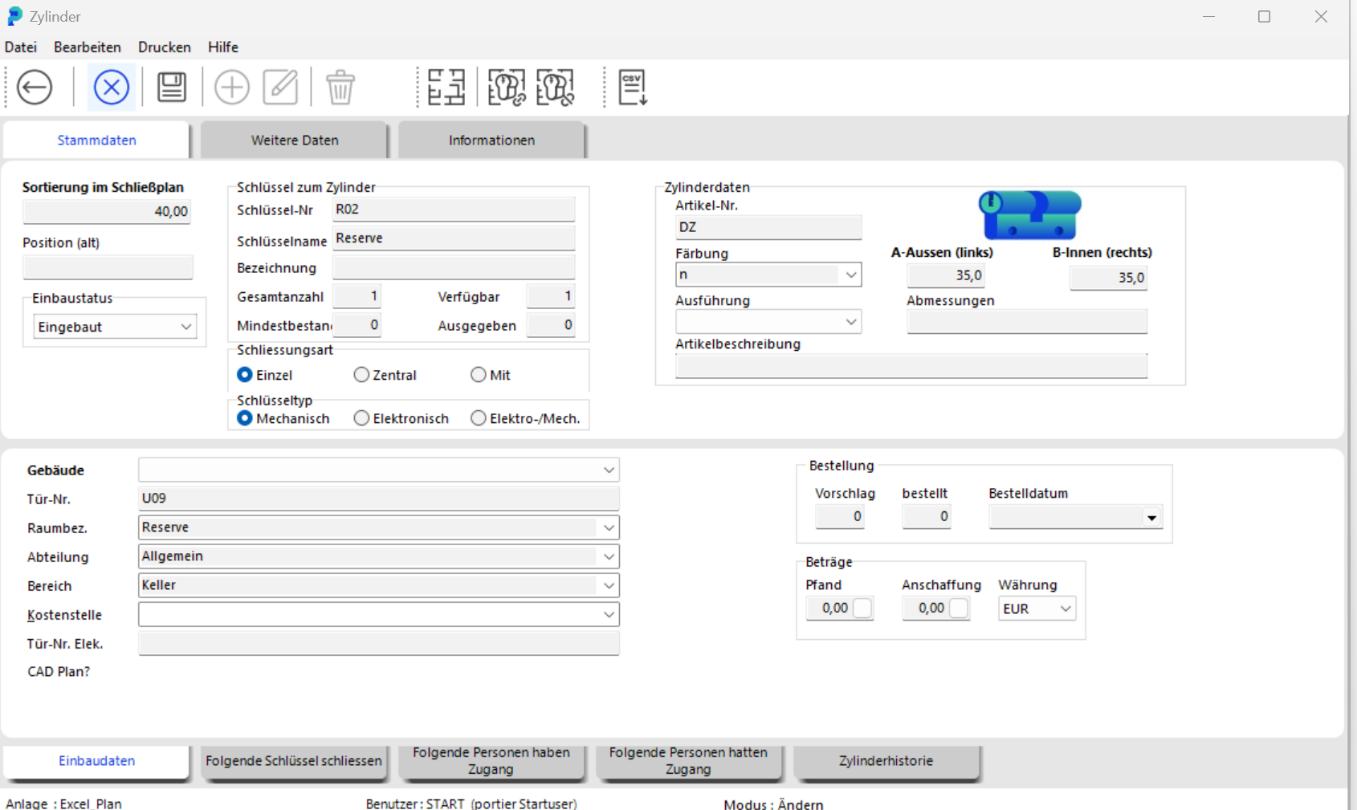
Double-click the cylinder to open the CYLINDER window. Click the "Installation Data" tab to edit the cylinder details.
Save the changes by clicking SAVE.
Important: key details cannot be changed in the cylinder screen after the initial entry. For changes, open the corresponding key screen in MANAGEMENT / KEYS.