In the Navigator, select the QUERIES module and click the PERSONS button.
The Queries: Personnel window opens.
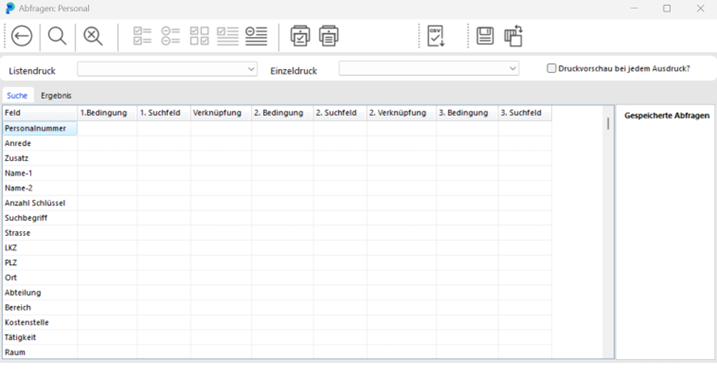
The left side of the window shows the fields you can use for searching. You can search in any of these fields, enter any number of search criteria, combine them as needed, and retrieve exactly the information you need. Search results can be exported to Excel or printed.
The general query procedure is as follows:
Define the conditions the persons you are looking for must meet, then start the search by clicking START SEARCH.
portier VISION displays the persons matching your conditions in the RESULT tab.
Example: you want to find all persons in a specific department who have two or more keys in their possession.
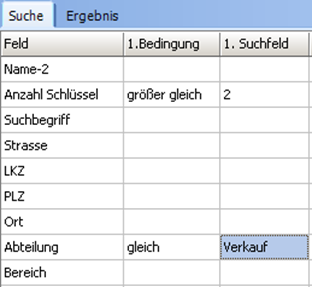
As the first condition, in the NUMBER OF KEYS row, select GREATER THAN OR EQUAL TO from the dropdown. Enter "2" in the first search field of the same row.
As the second condition, in the DEPARTMENT row, select EQUALS from the dropdown. Enter "Sales" in the first search field of the same row.
Click START SEARCH.
In the RESULT tab, portier VISION displays the persons matching your conditions: all persons in the Sales department who have at least two keys.
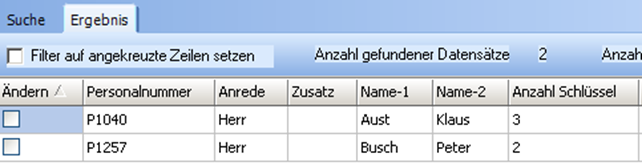
To process the found person records, the relevant records must be selected. Individual records are selected by clicking in the CHANGE column. Additional options are available via the buttons:
 Select all: marks all found records
 Deselect all: removes all marks
 INVERT MARKED ROWS: removes the existing mark and marks what was previously unmarked
 MARK SELECTED ROWS: marks the current row
 UNMARK SELECTED ROWS: removes the mark from the current row
To find all key copies that have been recorded as lost or damaged:
In the Navigator, select the QUERIES module and click COPIES.
The Queries: Copies window opens.
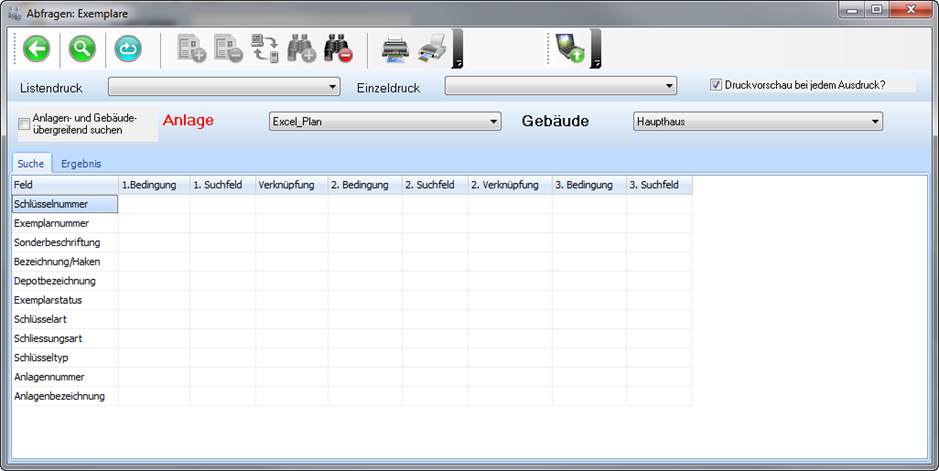
In the upper part of the window, specify whether to search across all installations and buildings. The current installation is shown in the INSTALLATION field.
In the COPY STATUS row, select EQUALS as the first condition and LOST as the value. Set the connector to OR. Select EQUALS as the second condition and DEFECTIVE as the value. Click START SEARCH. The RESULT tab shows all key copies recorded as either lost or damaged.
To get a list of all keys currently issued and not yet returned:
In the Navigator, select the QUERIES module and click ISSUE.
The QUERIES: ISSUE window opens.
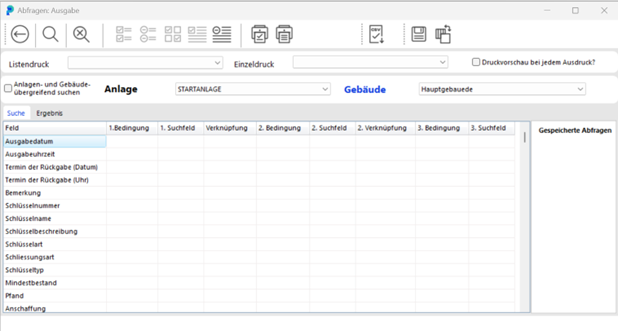
In the ISSUE DATE row, select LESS THAN OR EQUAL TO as the condition and choose CURRENT DATE in the first search field. Click START SEARCH. The RESULT tab shows all key copies that were issued on or before today and have not yet been returned.
To get a list of all keys that were issued and returned during your holiday:
In the Navigator, select the QUERIES module, click More>> and then HISTORY. The QUERIES: HISTORY window opens.
In the upper part of the window, specify whether to search across all installations and buildings. In the ISSUE DATE row, select GREATER THAN OR EQUAL TO and enter the first day of your holiday. Set the connector to AND. Select LESS THAN OR EQUAL TO and enter the last day of your holiday. Click START SEARCH. The RESULT tab shows all key copies that were issued and returned during your holiday.